
Create and import EDI specs Last updated: 2026-10-08
Trading partners often change the standard: a segment becomes mandatory, a code list gets shorter, or a loop repeats fewer times. The EDI Spec Builder lets you create custom EDI specs for them. Copy a standard spec from the EDI Spec Library, or import an OpenEDI or SEF file, change it, and then parse and validate files against it in EdiNation.
Note
Custom specs are saved to your subscription if you added your API key, and otherwise to the public free subscription, where other users can see them. Don't put confidential information in a spec saved with the free key.
The OpenEDI format
All specs in the EDI Spec Builder and the EDI Spec Library are in OpenEDI, an open format for EDI specs based on the schema object in OpenAPI 3. It is open source under the MIT license, and the full specification is on GitHub: OpenEDI Specification.
To learn more, read The OpenEDI format.
The SEF format
The EDI Spec Builder can import SEF (Standard Exchange Format) files, and converts them to OpenEDI. The SEF features that are supported are listed in How to migrate from SEF to OpenEDI.
Create a custom spec
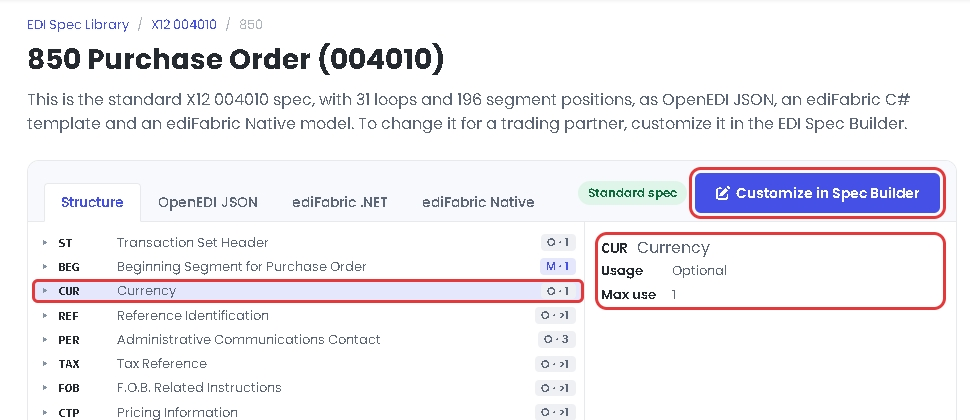
For example, suppose a partner requires the CUR segment at the top level of the X12 004010 850 purchase order, where the standard makes it optional.
1. Copy the standard spec
In the EDI Spec Library, open the X12 004010 850 spec and select Customize in Spec Builder:
2. Name the copy
Enter a name for your spec, for example acme_x12_850, and select Create and edit. The copy is saved to the subscription and opens in the Structure tab.
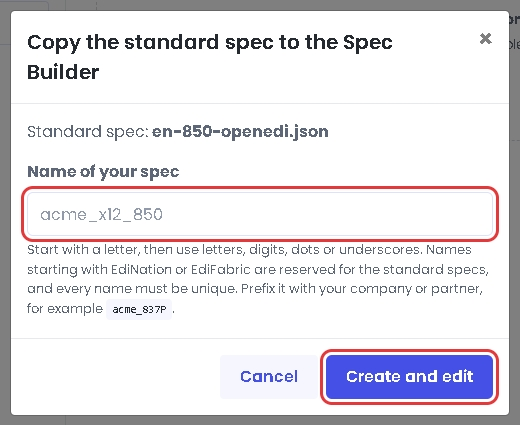
The name identifies the spec, so it must be unique. Start with a letter, then use letters, digits, dots or underscores. Names starting with EdiNation or EdiFabric are reserved for the standard specs. Prefix the name with your company or partner.
3. Change the spec
Select the CUR segment, set Usage to Mandatory, and select Apply change. Changes stay in the browser until you save them, and are listed under Changes since you opened the spec.
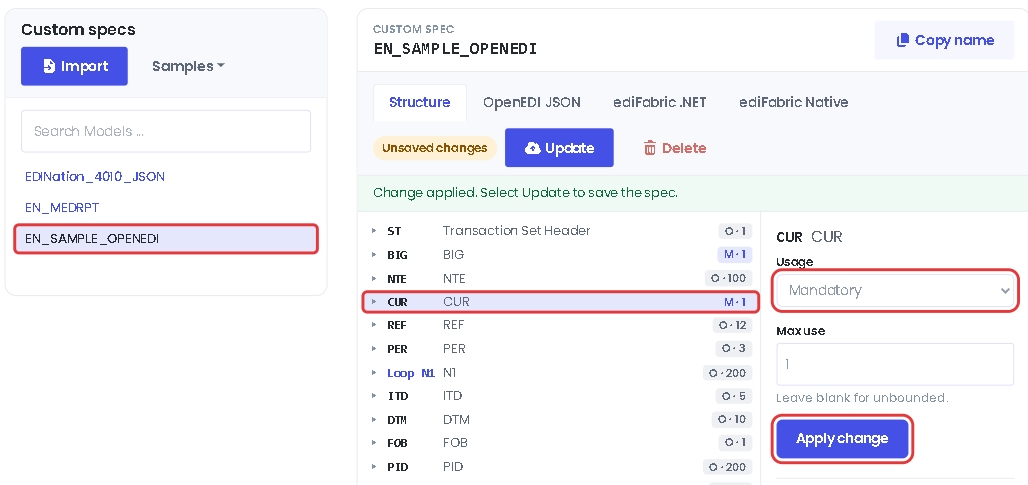
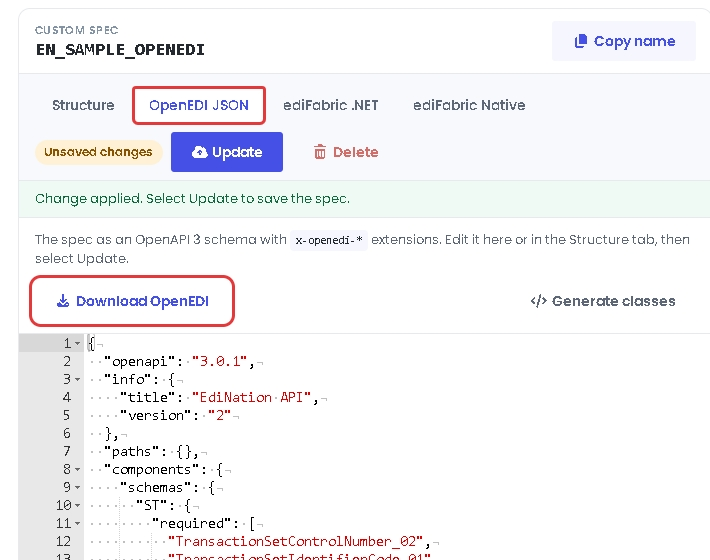
You can also add, move, copy and delete loops, any order groups, segments, composites and data elements, or edit the spec directly in the OpenEDI JSON tab:
4. Save the spec
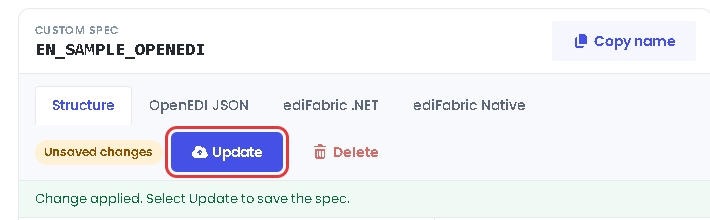
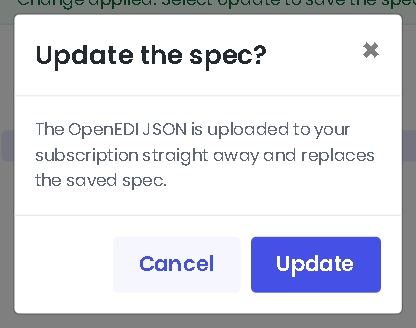
Select Update, then confirm. The spec in the subscription is replaced and is ready to use straight away.
Import an OpenEDI or SEF file
Select Import and choose an OpenEDI JSON file, or a SEF file with the .sef extension. The file name becomes the name of the spec, so rename the file first if you need to. SEF files are converted to OpenEDI. The imported spec is saved to the subscription and appears in the list of custom specs, where you can change it like any other.
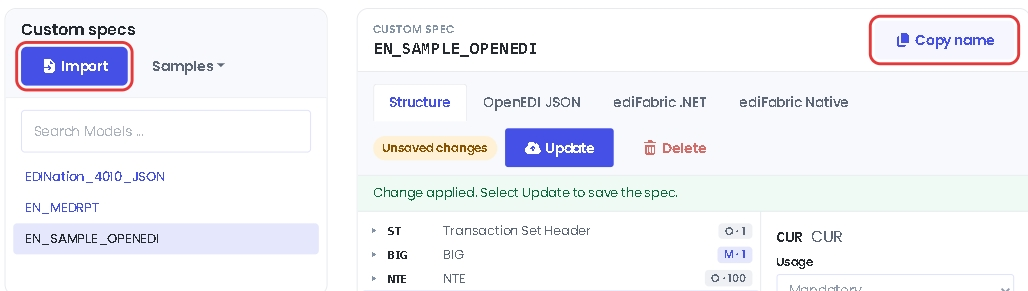
If the import fails, the name is probably already in use or starts with EdiNation or EdiFabric. Rename the file to a name that isn't in the list of custom specs and import it again.
Download a custom spec
Like the standard specs, every custom spec can be downloaded in three formats: select Download OpenEDI in the OpenEDI JSON tab, Download C# in the ediFabric .NET tab, or Download Native in the ediFabric Native tab.
Delete a custom spec
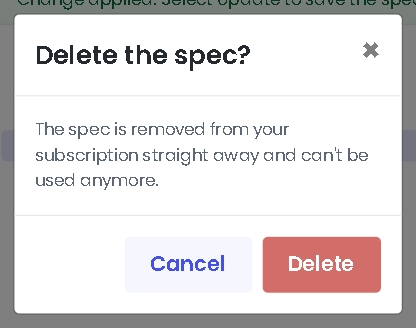
Select the spec in the list, select Delete next to Update, and confirm. The spec is removed from the subscription and can no longer be used.
Use a custom spec
Custom specs are not applied automatically. Select Copy name in the EDI Spec Builder, then open the X12 Local Editor or the X12 JSON Converter, select the sliders button next to Parse, and paste the name:
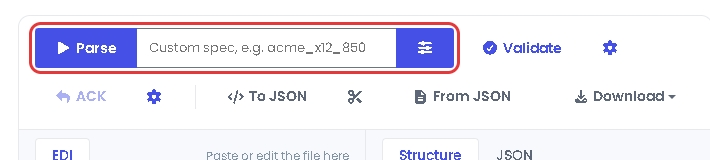
Every file you parse, validate or convert to JSON then uses your spec instead of the standard one.
Use a custom spec in your code
ediFabric Native and ediFabric Cloud use the same OpenEDI specs, so you can validate partner files in your own application against the spec you built. To learn how, read EDI models.
Next steps
To learn more about how to translate and validate EDI files with EdiNation, try these tutorials: