
Parse and format EDI files Last updated: 2026-10-08
EdiNation puts every segment of an X12 or HIPAA file on its own line, matches each transaction to its spec, and shows the spec of any loop, segment or element you select. Parsing runs in your browser with WebAssembly, so the file never leaves your device.
Load an EDI file
Open the X12 Local Editor in EdiNation and load a file in one of three ways:
- Paste it into the EDI editor.
- Select Upload and choose a file. Uploaded files are parsed straight away.
- Select Samples and pick a sample, such as an 837P professional claim.
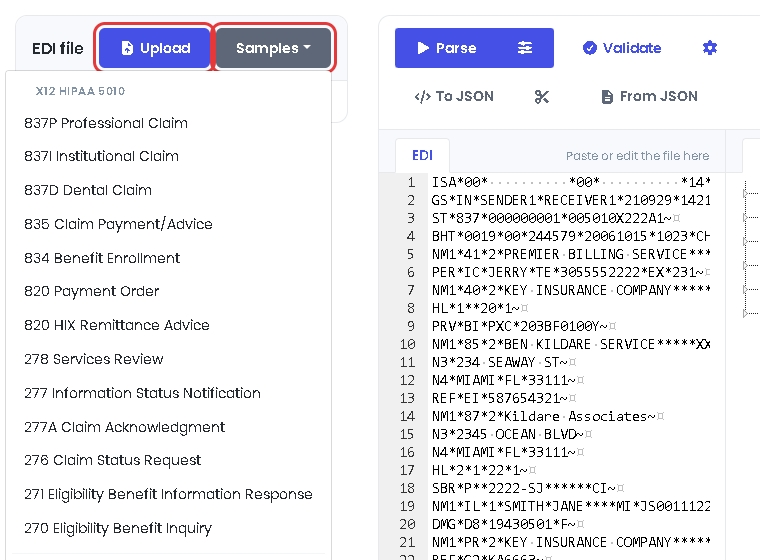
Until you parse it, the file is shown exactly as you loaded it.
Parse the file
Select Parse. EdiNation puts every segment on its own line, shows the structure of the file in the Structure tab, and reports the result in the status line under EDI file:
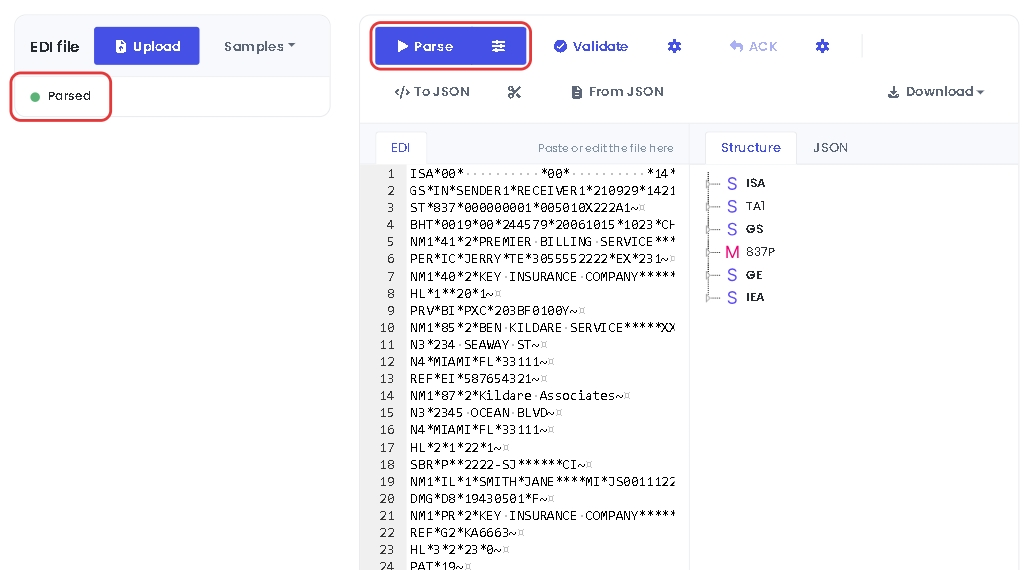
When the file is parsed, the status is Parsed, with a green dot. You can now validate the file, acknowledge it, or convert it to JSON.
When the file can't be parsed, for example because a segment is in the wrong place or has the wrong ID, the status is Parsing failed, with a red dot, and the reasons are listed under Errors. Select an error to highlight the segment that caused it:
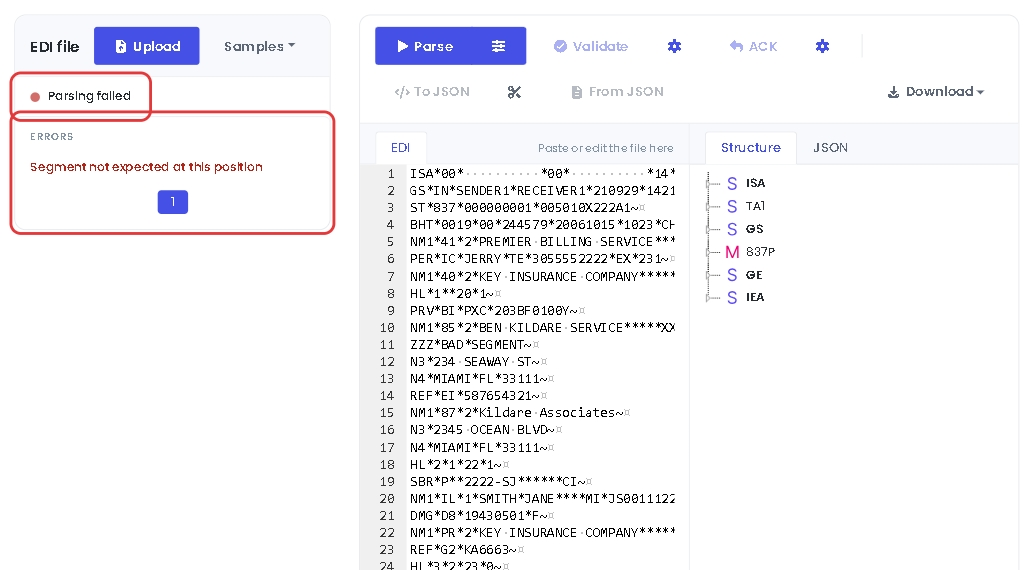
Fix the file in the editor and select Parse again. To keep errors in the right place, don't join segments on one line or add blank lines between them.
Cross-reference with the EDI spec
Click a segment ID in the editor, or move the cursor to it, to select the segment in the Structure tab. Its spec is shown under Selected item: name, path, usage, maximum repeats and the rules between its elements:
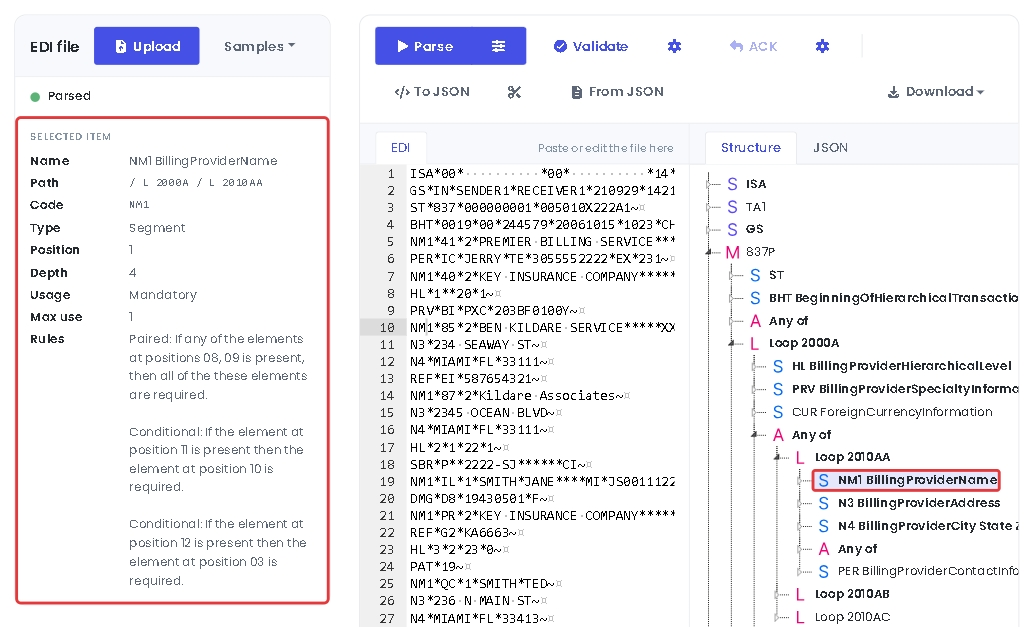
Click a data element to see its spec, including its data type and the codes it allows:
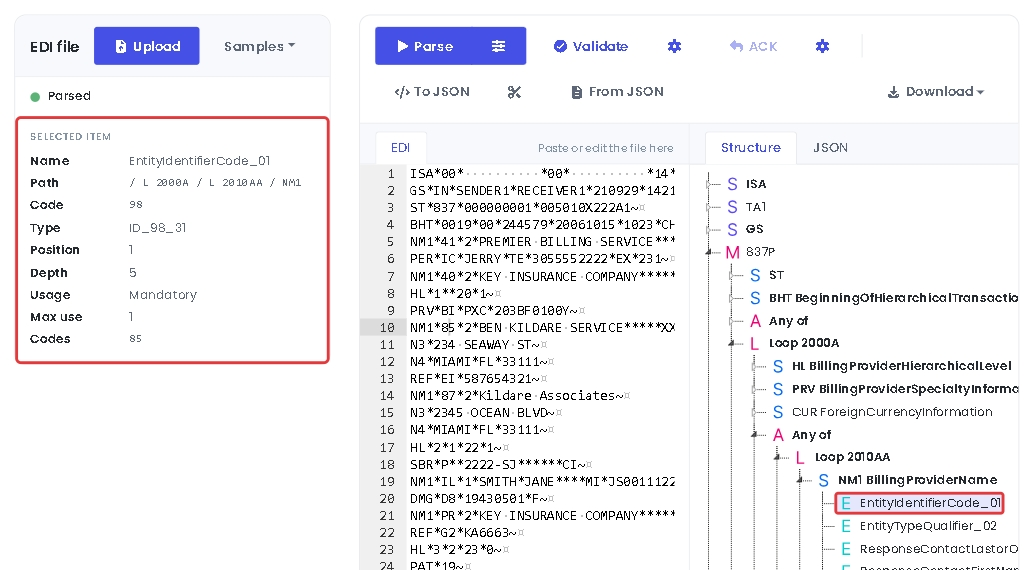
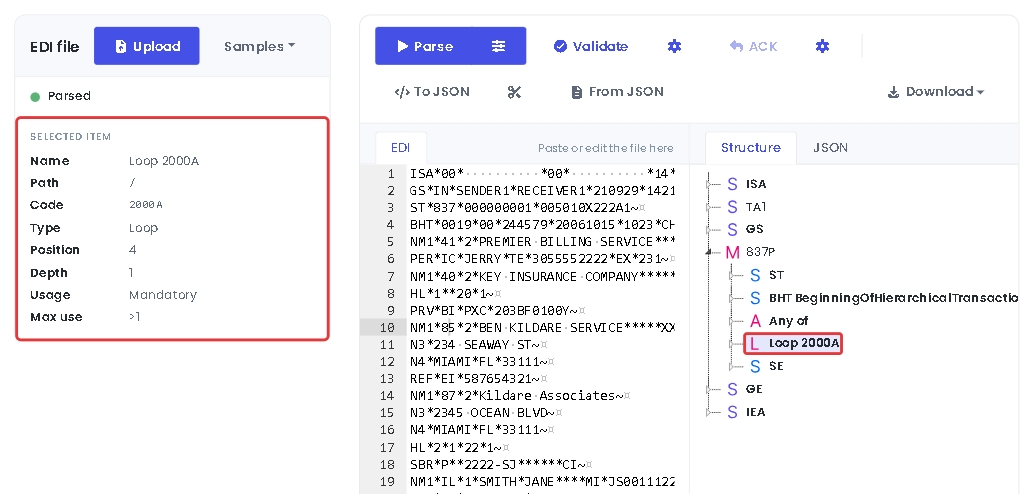
You can also select any item in the Structure tab, such as a loop or an any order group:
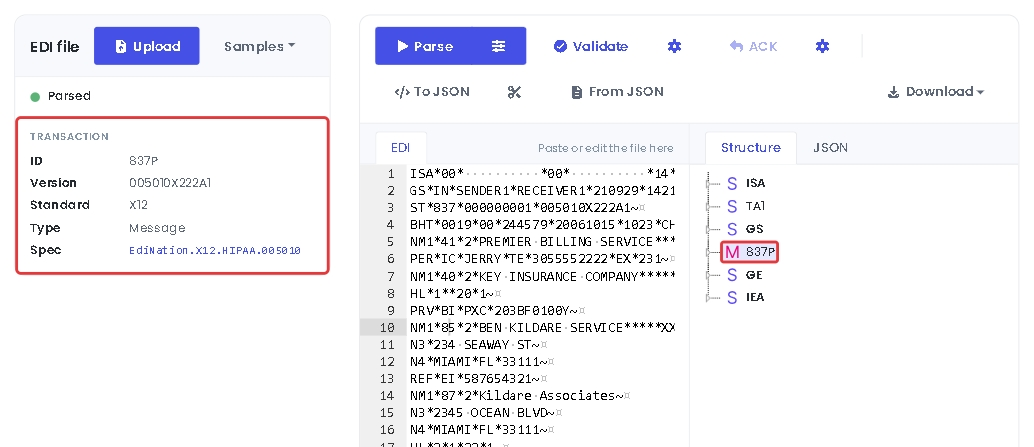
Select the transaction, for example 837P, to see its version and standard. The Spec link opens the transaction in the EDI Spec Library:
Use a custom EDI spec
EdiNation matches each transaction to its standard spec automatically. If a trading partner uses its own version of a transaction, create a custom spec in the EDI Spec Builder and parse against it instead.
Select the sliders button next to Parse and enter the name of your custom spec. To get the name, select Copy name in the EDI Spec Builder.
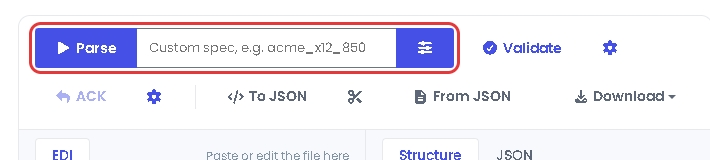
Every file you parse, validate or convert to JSON then uses your spec instead of the standard one. Clear the box to go back to the standard specs.
Next steps
To learn more about how to translate and validate EDI files with EdiNation, try these tutorials: