
Generate EDI acknowledgments Last updated: 2026-10-08
EdiNation generates the acknowledgment for a validated X12 or HIPAA file: a 999 or a 997, together with a TA1 for the interchange. It runs in your browser with WebAssembly, so the file never leaves your device.
You must validate the file before you can acknowledge it. To learn how, read Validate and debug EDI files.
Generate X12 acknowledgments
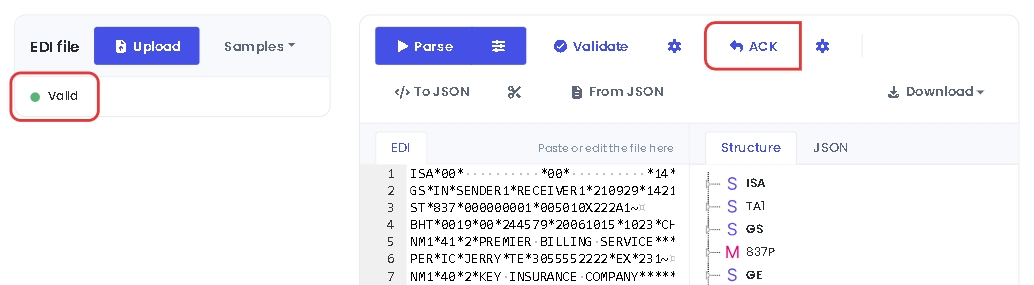
Open the X12 Local Editor, load, parse and validate your file, then select ACK:
The acknowledgment opens in a dialog. Select Download to save it as a file:
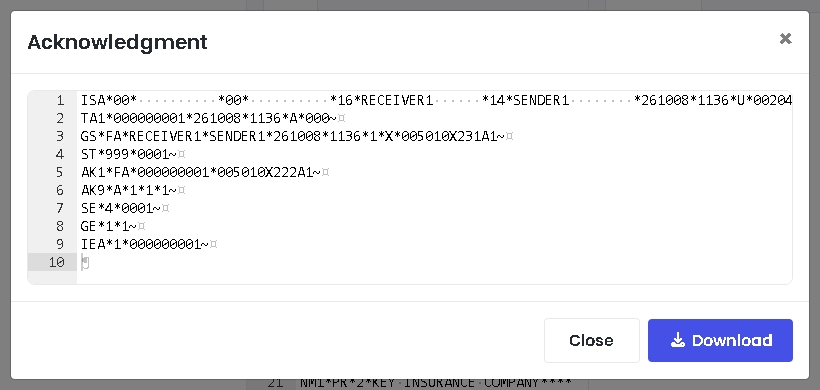
The acknowledgment reports the result of the last validation, with an AK2 loop for each transaction that has errors. A TA1 is included when ISA14 in the original file is 1, unless you turn it off in the settings.
Change the acknowledgment settings
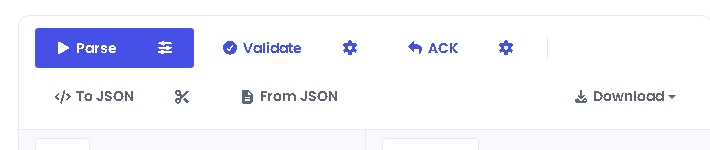
Select the settings button next to ACK:
Turn on the options you need, then select Save. The settings apply to the next acknowledgment.
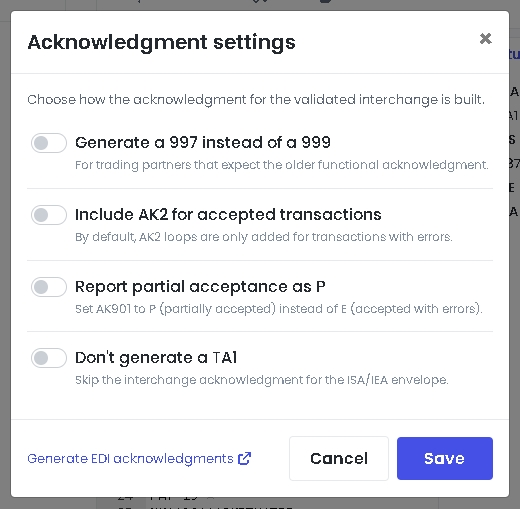
Generate a 997 instead of a 999
By default, EdiNation generates a 999 implementation acknowledgment. Turn this on for trading partners that expect the older 997 functional acknowledgment.
Include AK2 for accepted transactions
By default, AK2 loops are only added for transactions with errors. Turn this on to add an AK2 loop for every transaction, including the accepted ones.
Report partial acceptance as P
When a functional group is accepted with errors, AK901 is E by default. Some applications expect P (partially accepted) instead, and both are valid X12. Turn this on to use P.
Don't generate a TA1
By default, a TA1 interchange acknowledgment is added to the same interchange when ISA14 in the original file is 1, and left out when it is 0. Turn this on to never generate a TA1, whatever the value of ISA14.
Next steps
To learn more about how to translate and validate EDI files with EdiNation, try these tutorials: