
Convert between EDI and JSON Last updated: 2026-10-08
EdiNation converts X12 and HIPAA files to JSON, and JSON back to X12. Every loop, segment and element becomes a named JSON property, and you can edit both the EDI and the JSON. Conversion runs in your browser with WebAssembly, so your data never leaves your device.
Load and parse the EDI file
Open the X12 JSON Converter in EdiNation. It has the same toolbar as the X12 Local Editor, with To JSON and From JSON first.
Paste a file into the EDI editor, select Upload, or pick a sample from Samples. If you paste the file, select Parse; uploaded files are parsed automatically. To learn more, read Parse and format EDI files.
Only files that parse without errors can be converted. After a structural change, such as adding a segment, parse the file again before you convert it.
Use a custom EDI spec
EdiNation matches each transaction to its standard spec. To convert against a custom spec instead, select the sliders button next to Parse and enter the name of the spec, as described in Use a custom EDI spec. Clear the box to go back to the standard specs.
Convert EDI to JSON
Select To JSON. The JSON opens in the JSON tab on the right, and the status is Converted to JSON:
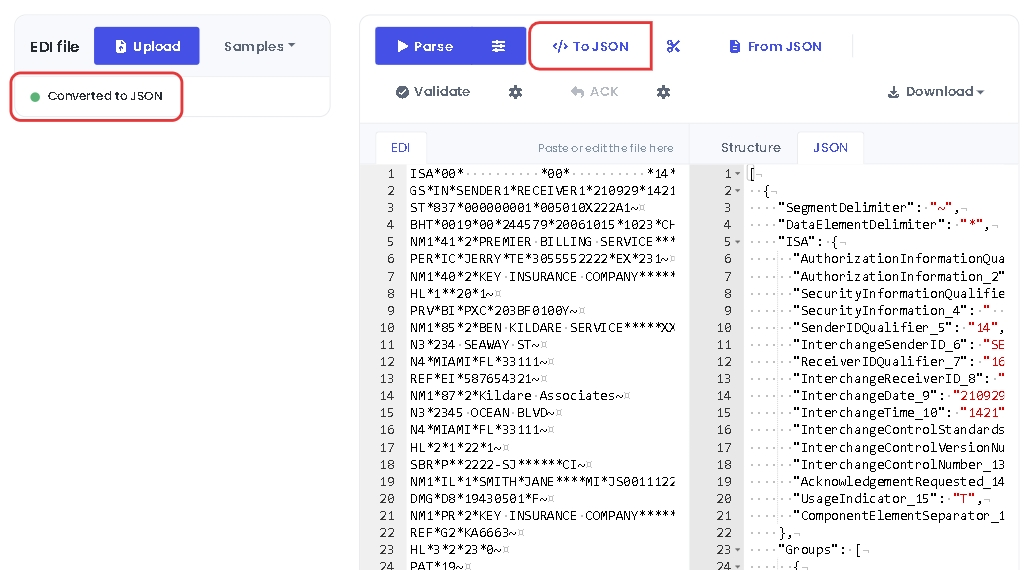
Each interchange becomes a JSON object with its delimiters, the ISA segment and its groups, and each transaction follows its spec in OpenEDI. To save the JSON, select Download and then JSON.
You can change the EDI and convert it again as many times as you need.
Convert large files in chunks
JSON can be ten times larger than the EDI it comes from, which can slow down or crash the browser. EdiNation can convert a large file in chunks when:
- The file has many transactions (ST/SE blocks). Split it by transaction.
- A loop repeats many times. Split it by loop.
Select the scissors button next to To JSON and enter the line number of the segment to split at, as shown in the EDI editor:
- To split by transaction, enter the line of the first ST segment.
- To split by loop, enter the line of the first segment of the repeating loop. For example, Loop 2000B in an 837P starts with an HL segment.
Then select To JSON. EdiNation converts the first chunk, and the status is Converted the next chunk to JSON. Select To JSON for the next one. Select To JSON again for each chunk, until the status is Converted to JSON.
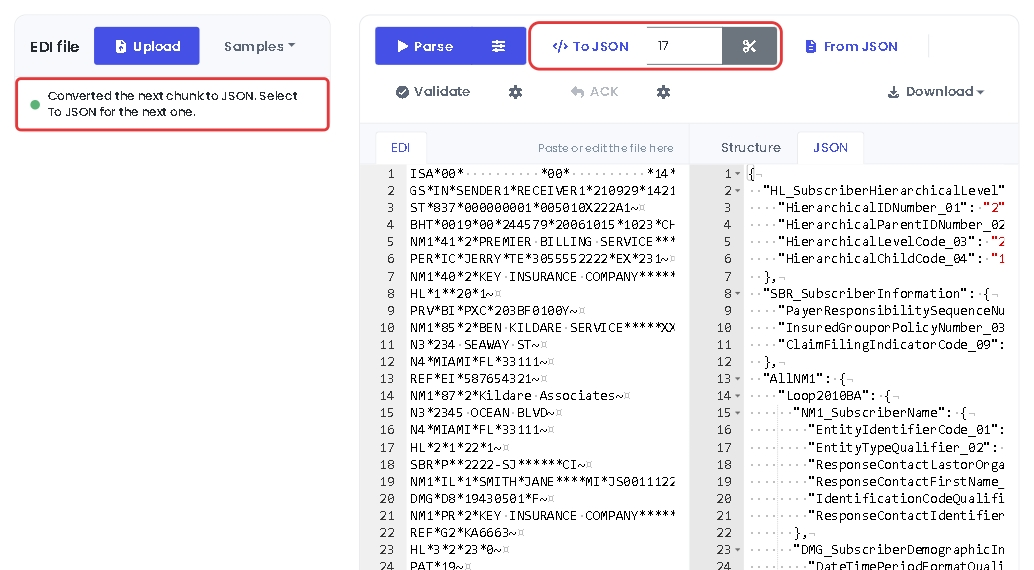
If the line isn't the first segment of a transaction or of a repeating loop, the file isn't split.
Convert JSON to EDI
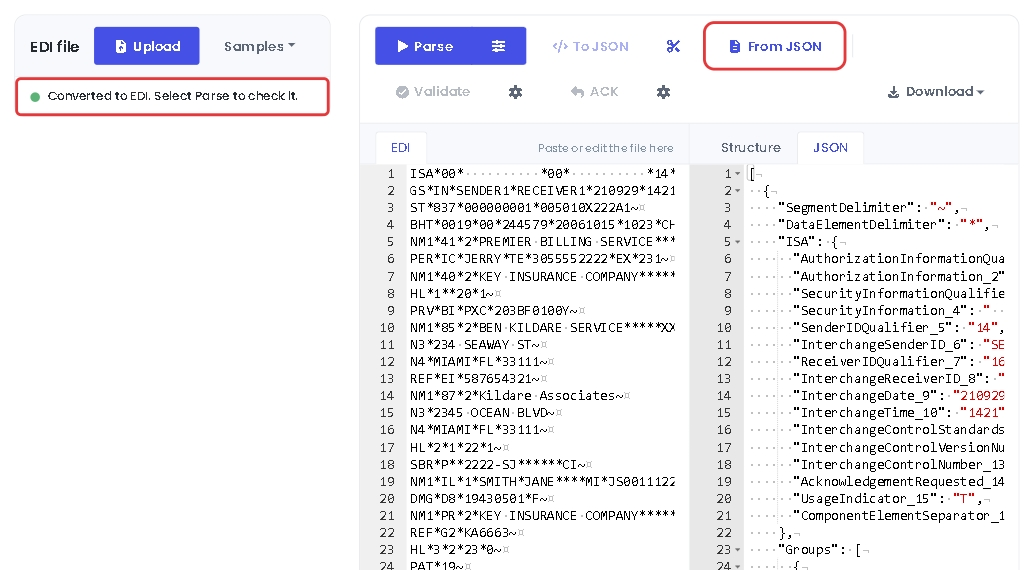
To generate an EDI file, edit or paste the JSON in the JSON tab and select From JSON. The JSON must have the same structure as the output of To JSON, and each transaction must match an existing spec. The EDI replaces the content of the EDI editor, and the status is Converted to EDI. Select Parse to check it.
Note
To check that the generated file is correct, select Parse and then Validate.
Generate X12 with custom delimiters
To generate X12 with non-default separators, set these properties in the X12Interchange JSON before you select From JSON:
- Segment separator:
X12Interchange.SegmentDelimiter - Data element separator:
X12Interchange.DataElementDelimiter - Repetition separator:
X12Interchange.ISA.InterchangeControlStandardsIdentifier_11 - Component data element separator:
X12Interchange.ISA.ComponentElementSeparator_16
Next steps
To learn more about how to translate and validate EDI files with EdiNation, try these tutorials: