
Validate and debug EDI files Last updated: 2026-10-08
EdiNation validates X12 and HIPAA files against HIPAA SNIP levels 1 to 4 and shows each error next to the segment and element that caused it. Validation runs in your browser with WebAssembly, so the file never leaves your device.
A file must parse without errors before you can validate it, because a file with structural errors can be read in more than one way. To learn how to load and parse a file, read Parse and format EDI files.
Validate EDI files
Open the X12 Local Editor, load and parse your file, then select Validate:
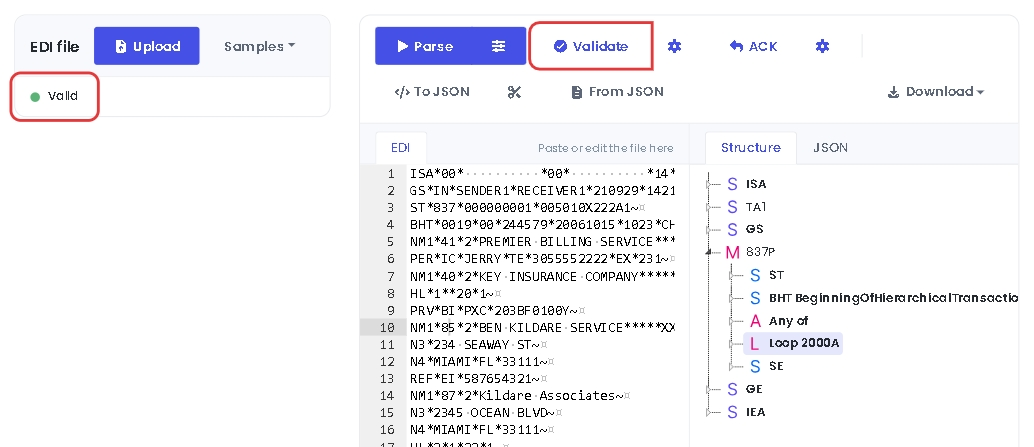
When no errors are found, the status is Valid, with a green dot, and you can generate an acknowledgment.
When errors are found, the status is Validation failed, with a red dot, and the errors are listed under Errors. Select an error to mark the element that caused it in the editor and show its spec under Selected item:
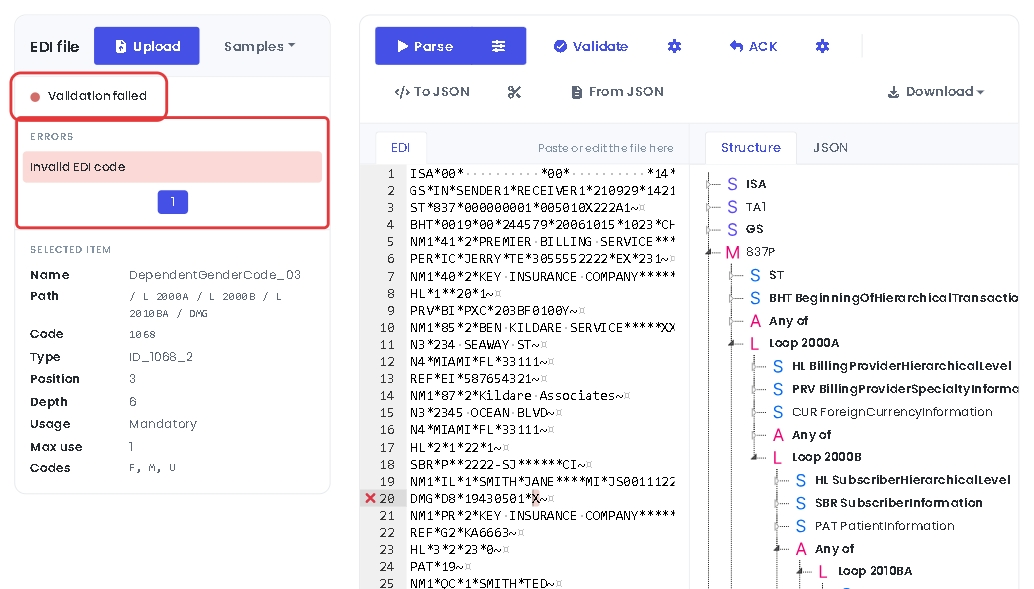
In this example, the gender code in DMG03 is X, and the spec only allows F, M and U.
Fix validation errors
Correct the file in the EDI editor and select Validate again. After you change a value, such as a code or a date, you can validate straight away.
Changes to the structure, such as adding or removing delimiters or segments, need a new parse. EdiNation then turns off Validate, ACK and To JSON, and the status is Changed. Select Parse again.
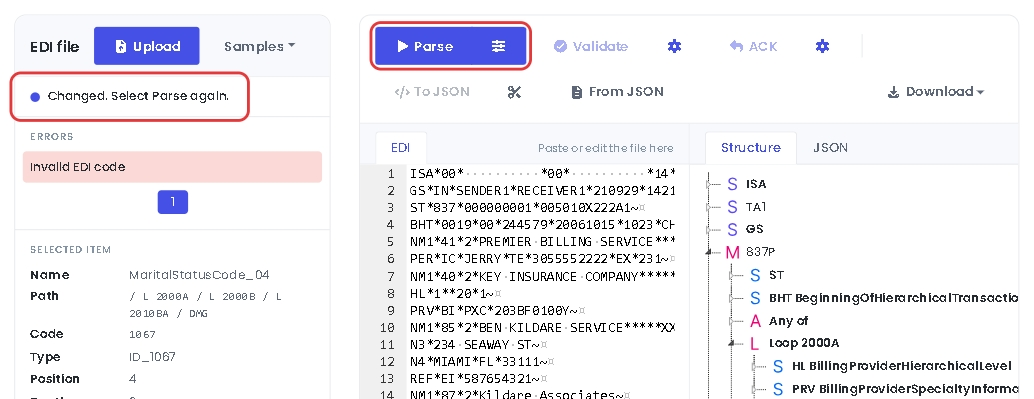
Select Parse, then Validate.
Download EDI files
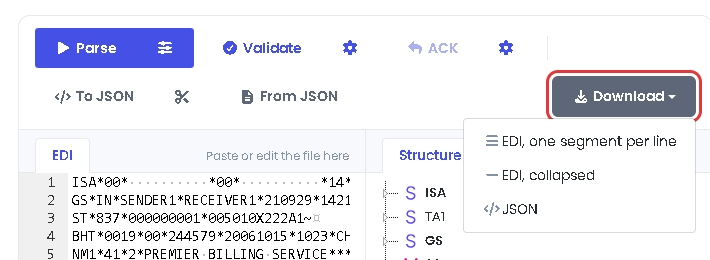
When the file is correct, select Download and choose a format:
- EDI, one segment per line saves the file as it is in the editor.
- EDI, collapsed saves the file with all segments on one line.
- JSON saves the content of the JSON tab, after you convert the file to JSON.
Change the validation settings
Select the settings button next to Validate:
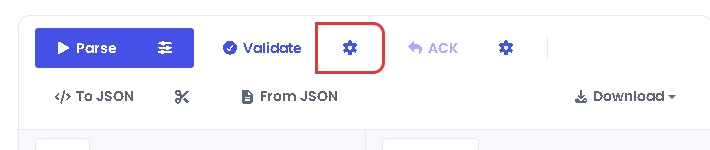
Choose the validation level and the maximum number of errors, then select Save. The settings apply to the next validation.
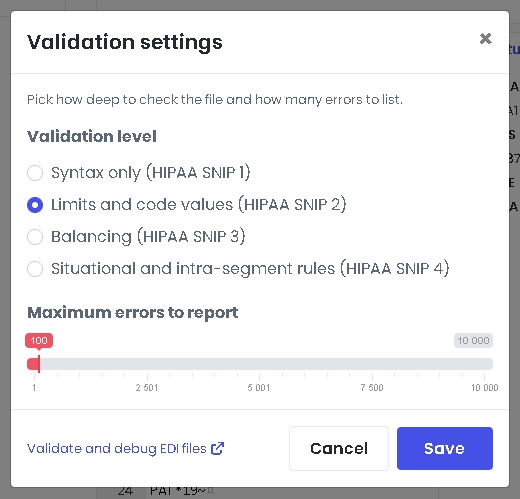
Validation level
EdiNation follows the HIPAA SNIP levels. Each level includes the checks of the levels before it:
- Syntax only (HIPAA SNIP 1) checks the EDI syntax and the integrity of the file.
- Limits and code values (HIPAA SNIP 2) also checks segment repeats, element lengths and code values. This is the default.
- Balancing (HIPAA SNIP 3) also checks that amounts balance, for example that the claim line amounts add up to the claim total.
- Situational and intra-segment rules (HIPAA SNIP 4) also checks the situational rules, where one element or segment is required depending on another.
To learn more, read How to validate HIPAA SNIP levels.
Maximum errors to report
By default, validation stops after 100 errors, so that a badly broken file doesn't take long to check. Use the slider to set a limit between 1 and 10,000.
Next steps
To learn more about how to translate and validate EDI files with EdiNation, try these tutorials: