
EDI templates Last updated: 2026-10-08
EDI templates are the C# classes that ediFabric .NET reads EDI into and writes EDI from, one class per transaction. Every plan, Community, Developer and Enterprise, uses the same C# templates. You download them from the EDI spec library, or build custom ones in the EDI Spec Builder, and add them to a class library in your solution. This guide builds a console that reads an X12 850 purchase order.
Where the templates come from
| Templates | Where to download them | Use them for |
|---|---|---|
| Standard | The ediFabric .NET tab of a transaction in the EDI spec library | Every transaction and version of X12, HIPAA, EDIFACT, EANCOM, HL7, NCPDP, IATA PADIS, VDA and EDIGAS |
| Custom | The ediFabric .NET tab of your spec in the EDI Spec Builder | A trading partner's implementation guide, when it changes the standard |
The templates are the same on every plan. When you upgrade from Community, you change only the serial key, and your template projects stay as they are. The same classes parse, generate and validate. If a transaction is missing, ask for it. How a template describes a message is in Customize EDI guidelines.
Create the console
-
Create a console and add EdiFabric 11. Package targets are .NET 8, .NET 9, .NET 10, and .NET Framework 4.8.
dotnet new console -n ReadX12
cd ReadX12
dotnet add package EdiFabric
In Visual Studio the same install is
Install-Package EdiFabric. Details are in Install EdiFabric. - Sign up for Community and copy the serial from Your account. How the three license calls differ is in Serial key authentication.
- Replace
Program.cswith the read below. Then download the templates and add them to a class library, as described in the next two sections.
using EdiFabric.Core.Model.Edi;
using EdiFabric.Framework.Readers;
using EdiFabric.Templates.X12004010;

License.SetSerial("your-serial-key");

var x12File = File.OpenRead(@"C:\edi\PurchaseOrders.txt");

List<IEdiItem> ediItems;
using (var reader = new X12Reader(x12File, "ClassLibrary1",
    new X12ReaderSettings { ContinueOnError = true }))
{
    ediItems = reader.ReadToEnd().ToList();
}

var purchaseOrders = ediItems.OfType<TS850>();
X12Reader takes the stream and the assembly name of the class library that contains the templates. ContinueOnError keeps reading after a bad transaction. HIPAA files use the same X12Reader. EDIFACT, HL7 and NCPDP have their own readers, which take the assembly name the same way. On Developer, call License.EnsureToken, and on Enterprise License.SetToken, instead of License.SetSerial.
Download the C# templates
Every transaction in the EDI spec library has its template as C#, and you can download it without an account.
- Open the EDI spec library, select the standard and version, for example X12 004010, and open the transaction, for example 850.
-
On the ediFabric .NET tab, select Download C# for the transaction class,
TS850, and Common files for the segments, composites and codes of the version. The common files are the same for every transaction in the version, so you download them once.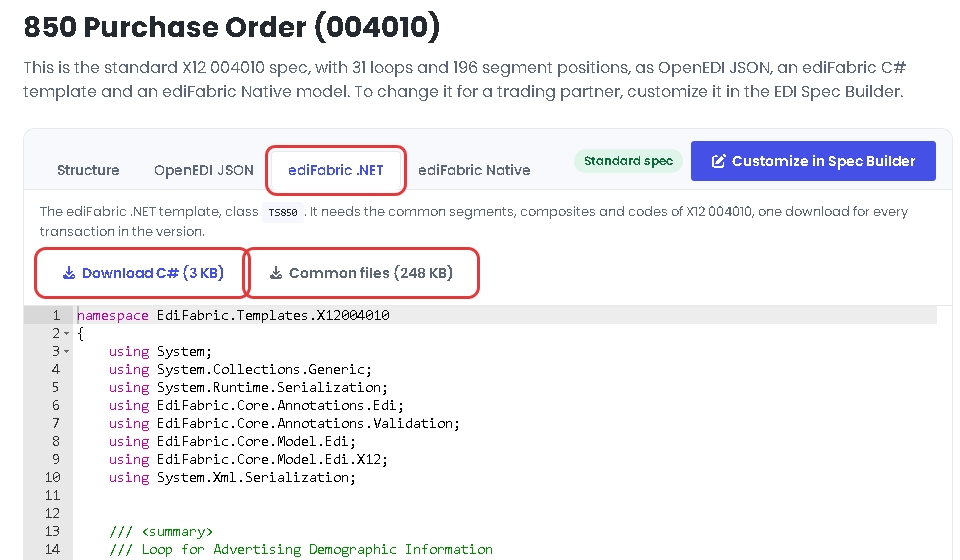
HIPAA transactions, such as 837P, download as one ZIP with the transaction and its Common folder, so there is no separate Common files button.
Class names are TS plus the transaction id, in a namespace for the standard and version. An X12 4010 invoice is EdiFabric.Templates.X12004010.TS810, a HIPAA 5010 professional claim is EdiFabric.Templates.Hipaa5010.TS837P, and an EDIFACT D96A invoice is EdiFabric.Templates.EdifactD96A.TSINVOIC.
Add the templates to a class library
Put one version, or one partner, in one class library, and reference that library from the console.
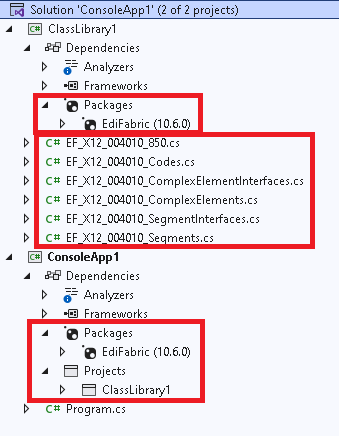
- Add a Class Library to the solution. Delete
Class1.cs. -
Install EdiFabric into that library.
dotnet add package EdiFabric - On .NET Framework only, reference
System.Runtime.SerializationandSystem.Xml.Serialization. -
Unzip the downloads. Add the transaction file, for example
EF_X12_004010_850.cs, and every file in the Common folder of the version. Common is the five files ending in_Codes.cs,_ComplexElementInterfaces.cs,_ComplexElements.cs,_SegmentInterfaces.cs, and_Segments.cs.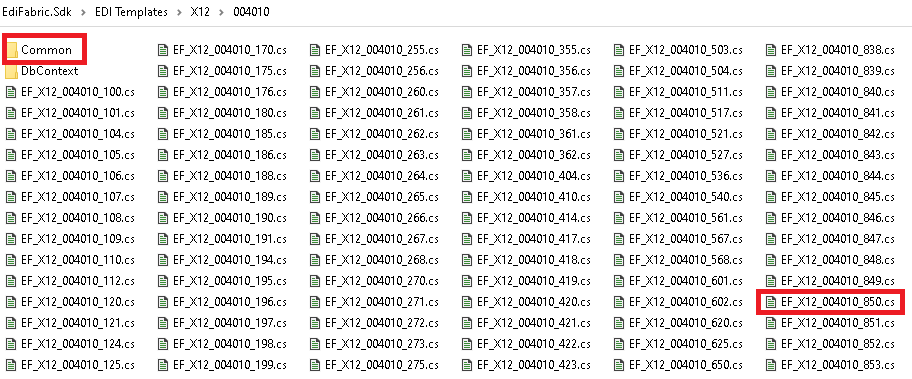
-
Reference the class library from the console.
-
Pass the class library's assembly name to the reader. If the project is
ClassLibrary1, that argument is"ClassLibrary1". It is the assembly name, not the namespace ofTS850.using (var reader = new X12Reader(x12File, "ClassLibrary1", new X12ReaderSettings { ContinueOnError = true }))
At runtime you can load several template assemblies, or a C# type directly. The matching-templates section of Parse EDI files shows both.
Use a custom template
When a trading partner changes the standard, for example by making a segment mandatory, build the change in the EDI Spec Builder:
- Open the transaction in the EDI spec library and select Customize in Spec Builder. Name the copy, change it, and select Update. The steps are in Create and import EDI specs.
-
Select your spec in the EDI Spec Builder, open the ediFabric .NET tab, and select Download C#.
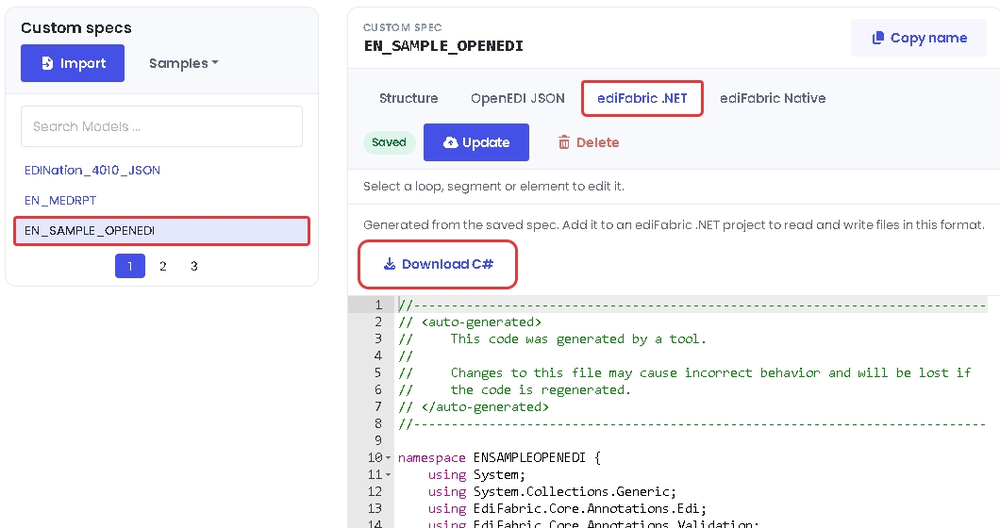
- Add the file to its own class library, as in Add the templates to a class library, and pass that library's assembly name to the reader.
A custom template is one C# file, generated from the saved spec. It includes its own segments, composites and codes, so it doesn't need the common files. Its namespace is named after the spec, for example ENSAMPLEOPENEDI for EN_SAMPLE_OPENEDI. You can also change the C# of any template directly, as described in How to modify EDI templates.