
Build in-house API as ASP.NET Core Last updated: 2026-10-08
This example hosts ediFabric Native behind an ASP.NET Core API. It translates X12 EDI to JSON and back, validates transaction sets, and generates acknowledgments using the C# bindings from edifabric-csharp-bindings.
The native library is a self-contained shared library. No EdiFabric.Api NuGet package (aka EdiNation InHouse) is required on the target machine beyond this ASP.NET host.
Prerequisites
- Visual Studio or the .NET 10 SDK.
- Download Postman - it's an application to consume/test your API.
- The native library for your platform:
| Platform | File |
|---|---|
| Windows | edifabric-x12-tools.dll |
| Linux | edifabric-x12-tools.so |
| macOS | edifabric-x12-tools.dylib |
Download ediFabric Native Library
Put the library in the repository root or in EdiFabric.Api.ASPNET, or set LibraryPath in appsettings.json / EDIFABRIC_X12_LIB. The project copies it next to the executable on build when it is found in those folders.
License
Set ApiKey in appsettings.json to your serial. The free-plan serial is:
bd96a836feca45cb91c86ee65d281f52The free plan authorizes with set_serial only. Tokens (TokenFileCache) are available for the Enterprise license.
Setup
Rebuild the solution. If there are any build errors, contact us at https://support.edifabric.com/hc/en-us/requests/new for assistance.
The C# bindings live in EdiFabric.Api.ASPNET/Native (NativeMethods.cs and EdiFabricX12.cs), copied from the edifabric-csharp-bindings repository.
By default the API uses the online spec service (SetMap with "default": "<serial>"). To use local JSON models instead, place a map/map.json next to the web project (see the bindings README for the map format).
Debug the ASP.NET application in Visual Studio
- Open solution EdiFabric.Api.ASPNET.sln in Visual Studio.
-
Open the file appsettings.json and change ApiKey to your paid key or leave it to use the free key.
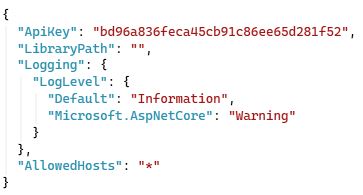
- Rebuild the solution and ensure all package dependencies were installed correctly.
- Run the EdiFabric.Api.ASPNET project in debug mode.
Test the ASP.NET application
- Download and open Postman. Let's test the X12 read operation first.
-
Open a new tab in Postman, select the POST method, and add the following request URL (full API reference):
{Your ASP.NET application URL}/x12/read -
Go to the Body tab, select the "binary" content, and then browse to your text X12/HIPAA file.
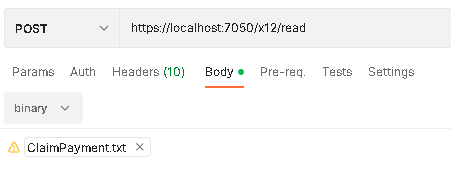
-
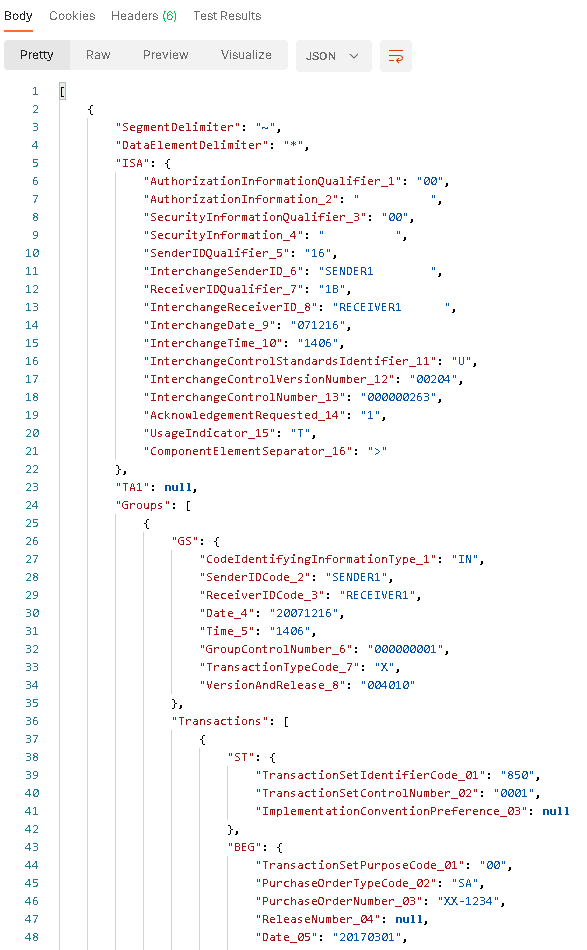
Finally, hit the Send button and inspect the response body:
Cache tokens
By default ediFabric Native would request a token from the Authentication API every time. To avoid these calls altogether and work in a fully offline mode, implement a token cache.
Note
Tokens are only available for the Enterprise plan
To implement the token cache, open the file X12Controller.cs and follow the instructions in the comments:

Cache models
By default ediFabric Native would request a new JSON model from the Authentication API every time a new transaction needs to be parsed. To avoid these calls altogether and work in a fully offline mode, create a model map.
SetMap tells the engine where to find transaction-set models. Keys are message:version. Set default to your serial to resolve unmapped transaction sets through the online spec service, or leave it null and map everything locally.
{
  "default": null,
  "maps": {
    "837:005010X222A1": { "type": 1, "name": "837P.json", "location": "/opt/models" },
    "850:005010":       { "type": 1, "name": "850.json",  "location": "/opt/models" }
  }
}
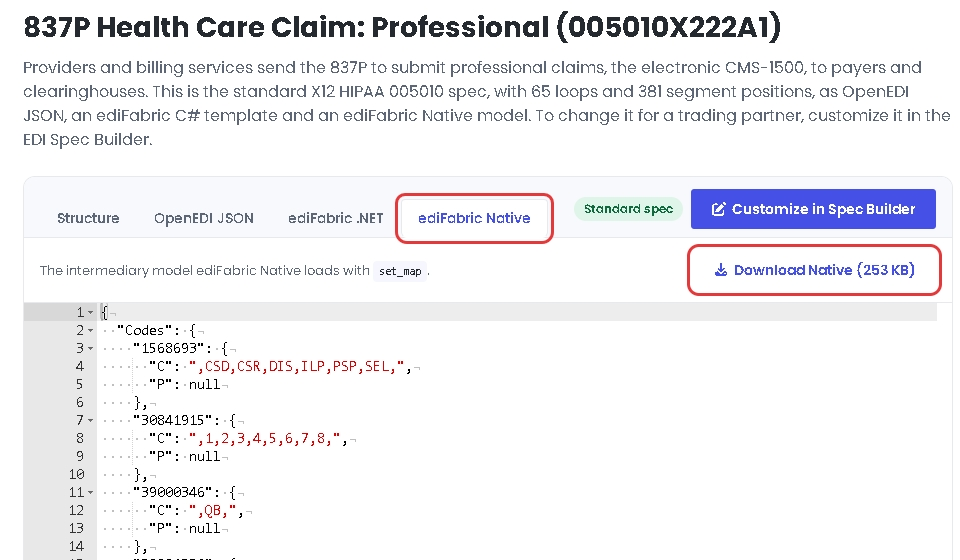
Every X12 transaction, such as 837P, 834 or 850, is described by a model, a JSON file that ediFabric Native loads through the map. Every plan, Community or paid, uses the same models. Download a standard model from the EDI spec library, or a custom model from the EDI Spec Builder, where you create and change models in the OpenEDI format.
To download a standard model, open the transaction in the EDI spec library, select the ediFabric Native tab, then select Download Native:
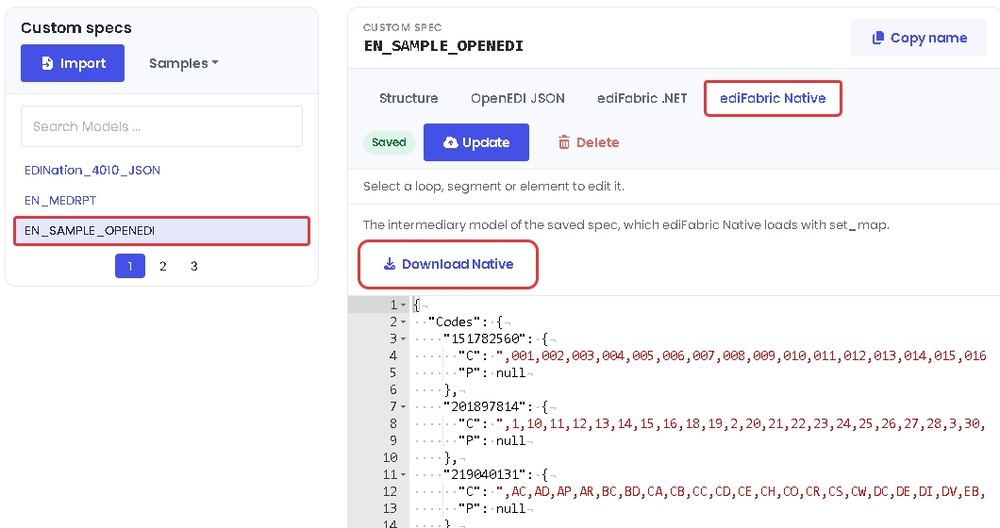
To download a custom model, select it in the EDI Spec Builder, select the ediFabric Native tab, then select Download Native:
Models are JSON files, and must be included, together with the map, in the deployment package.